Automatically generate your own listing video:
1. Login to your SPS account. If you have forgotten your password, you may reset it.
2. Click ‘Promote + Edit’ next to the listing you would like to create a video for. You may be prompted to set up a subscription if you have not already.
3. Under ‘Edit Listing Data’, click ‘Showcase Video’
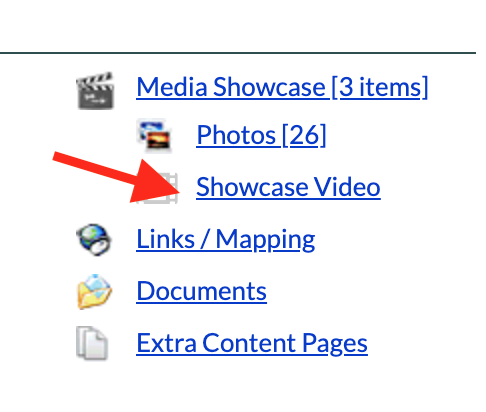
4. Click the blue ‘Click to Create Video’ button.
5. Your video will be created in less than 24 hours. An email will be sent to let you know that your video is ready.
To share your video on your own YouTube channel, website, or over social media, download your listing video as an MP4:
1. After your video has been created, navigate to the listing on the “Manage Sites” page.
2. Click “edit and promote”.
3. Click “Showcase video” under “media showcase”.
4. Select “Right-click and and ‘Save As’ to download”.
5. Right-click on the video and save it to your device.
Display your listing video on your Single Property Site:
1. After your video has been created, navigate to the listing on the “Manage Sites” page
2. Click “edit and promote”
3. Click “Media Showcase”
4. Click the “+ Videos, Panoramas and Interactive Tours” button
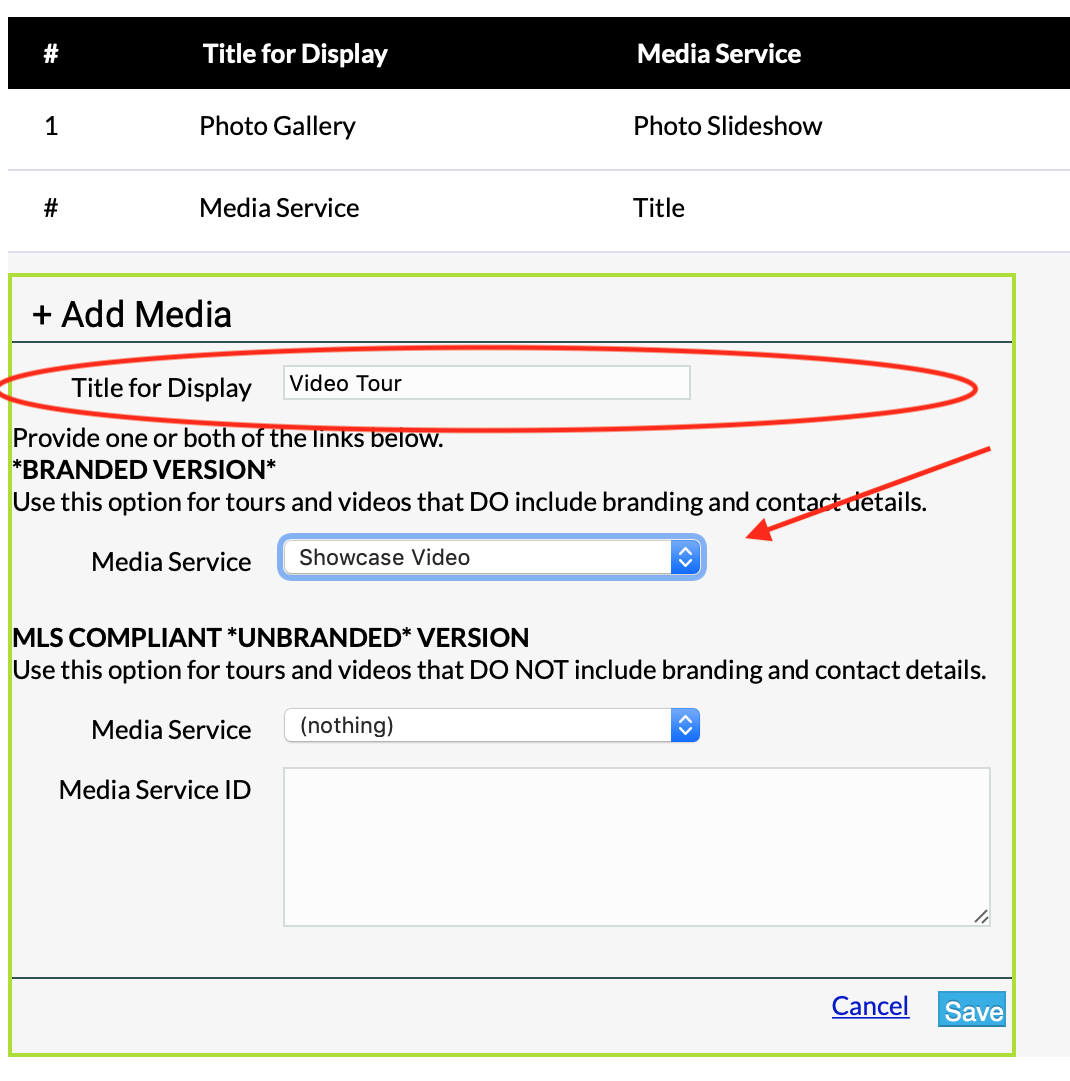
5. Write a display name like “Video Tour” or “Listing Video”
6. Under the “Media Service” dropdown menu, select “Showcase Video”
7. Click “Save”