What is an ACTIVE site, what does this mean?
How do I use SPS for FREE to help me Win a Listing?
What are the Statistics? What do they mean?
Do I need to buy a domain name every time a build a site?
How do I create a site for a FSBO?
Do I pay for all sites or just active ones?
What is an Activation Subscription Level?
Do I pay for updates such as a price change or a telephone number change?
How can I make my original digital photos smaller so that they can be uploaded?
My Photos are fuzzy – how do I make them sharper?
What happens if I change companies?
Where can I find Marketing Materials?
How do I use an Existing Domain Name?
Can I use a THIRD LEVEL domain?
I set up the wrong domain name! Can I change it?
What is an ACTIVE site – what does this STATUS mean?
Every site you create is shown in the MY SITES list and is assigned a STATUS.
A site STATUS can be changed by you.
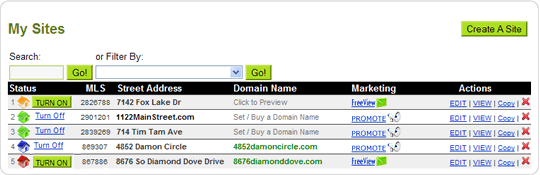
(TIP! – clicking the colored house icon will always show a preview of your site!)
A STATUS can be one of the following:
 NEW / DRAFT- Waiting Activation
- When a site has JUST been created, it status is shown as Orange indicating that it is OFF and awaiting Activation,
When a site is OFF it is not viewable on the Internet even if you have a domain name for that site.
When a site is OFF it does not use one of your available Activations.
The Marketing Options for an offline site are restricted to just the FREE-VIEW.  SITE ON (ACTIVE)
- A site that is ACTIVATED will have a ACTIVE status.
To make a site ACTIVE, you will need to subscribe to an Activation level and have at least one unused Activation.
When a Site is Active – you can use the PROMOTION options.  OFF
OFF- Once a Site has been ACTIVE and then De-Activated, it is marked as OFF.
When a site is OFF it is not viewable on the Internet even if you have a domain name for that site.
When a site is OFF it does not use one of your available Activations.  SOLD
SOLD- The ‘Property status’ is set as SOLD (or RENTED etc) (EDIT property and change status in “address/status” area)
When a site is SOLD it is still viewable on the Internet.
SOLD property sites stay LIVE and do NOT use one of your Activations – i.e. its free.
There are a number of ways to get help.
HELP DESK
We have an ONLINE help desk (see the HELP links at the foot of pages when you are logged in to your account – it opens the “HELP DESK/KnowledgeBase” area and look for the CONTACT US button).
By using this method to contact us, we will help you quickly as we will know who you are and we can immediately access your account and see issues.
We will help you QUICKLY with any issues – accounts, listings, how-to, and errors (hopefully not) you may encounter.
NOTE- You will see a transcript of all your submitted tickets and responses in the OPEN TICKETS link that will be displayed on the MANAGE SITES page at the top. We will respond via EMAIL but we know this is not reliable due to SPAM blockers etc. Always check back in your account for our responses.
KNOWLEDGE BASE
Inside the HELP/KnowledgeBase area, you will find easy to read answers to nearly all questions. Just search using keywords, or browse categories.
HOW-TO MOVIES
We have a growing collection of short movies that will show you how to use the SPS system.
See the HOW TO menu link at the top of all pages when you are logged in.
PAGE HELP
On each page we have typically included instructions that relate to what’s going on , on that page
How do I use SPS for FREE to help me Win a Listing?
Using SPS is a powerful way to help you win a listing by impressing the Seller with a fabulous website dedicated to their home.
You do not need to turn sites ON (i.e. pay for a subscription) in order to do this. SPS is free to use to help you win listings.
First – create your site – large photos, make it look great. At this stage, your site still OFF.
 Then – use the FREE VIEW to send your client an email which contains a special link that lets them see the property site for up to 4 days.
the link expires after 4 days – but you can easily RENEW the link (its the same link) – and you can repeat as often as you like.
While the FREE VIEW link is active – you can resend the link out as many times as you like. But it will stop working after 4 days unless you renew it.
FREE VIEW is available to be used for DRAFT sites regardless of any subscription that you may or may not have.
When you have secured the listing, then make your property LIVE and get it promoted!
What are the Statistics? What do they mean?
 Every site is monitored for traffic and site statistics are kept.
Unique Visitors is a count of distinct and unique visitors that visit a site.
If the same person visits a site several times over a few days, this only counts as one unique visitor.
Total Visitors is a count of all visitors that visit a site.
If the same person visits a site several times over a few days, all these visits are counted.
Do I need to buy a Domain Name every time a build a site?
No. If you intend to use the site as a tool to help you win a listing,
then there is no need to get a domain name until after you win the listing.
Once you TURN ON the site – there click the VIEW link to see all the ways to share and connect consumers to the site.
SPS will automatically assigned FREE property address URL for your site. We use a main domain name called 2SEEIT.com.
Then, your property street address is added to the front of this, – its called a THIRD LEVEL domain, like this:
http://1122MainStreet.2SeeIt.com
This is a great way to promote your listing and it works everywhere and also can be used on a SIGN RIDER.
However, there are times where you may want to allocate a specific domain name and you may assign a domain name using the DOMAIN NAME menu option when in the EDIT page for your listing.
Having a property address domain name can sometimes help with winning the listing as this this can be very attractive to potential listing clients.
And don’t forget how powerful a referral tool your Sign Rider will be out side the property.
For the FREE VIEW, your site will be OFF, and so you do not require a domain name, nor will any domain name be used in the FREE VIEW email.
How do I create a site for a FSBO?
A FSBO site is one that you (as a Realtor) would create FOR a FSBO.
The site will display a property status of ‘FOR SALE BY OWNER’.
The contact details will be all be of the FSBO seller.
None of your branding or logos will be shown on the site.
HOWEVER! The site will appear as if it was created and supplied by YOU, not Single Property Sites.
To create a Single FSBO Site, first create your site and then EDIT the site from the Manage Sites page.
On the EDIT menu, you sill see a FSBO ICON – click this and follow the instructions.
It’s as simple as that!
Do I pay for all sites or just Active ones?
You may create as many sites as you need without being charged.
These can be used to help you win listings with the FREE VIEW. However, to make a site ACTIVE, you will a membership.
What is the Membership Subscription Level?
A Membership Level of 1, permits you to have a single web site turned ON / ACTIVE, i.e. it can be viewed on the Internet.
When you TURN ON a site (make it ACTIVE) that site will then be active during the month.
As a site is TURNED OFF (made OFFLINE) the Activation is then ‘freed-up’ and becomes available for immediate re-use (no additional charges!)
Membership is sold on a subscription basis.
Subscriptions to a Membership level (e.g. 3 Activations) run from month to month during which time you may have
that number of sites ACTIVE (e.g. 3 sites Active) at any time.
Do I pay for updates such as a price change or a telephone number change?
No. You can change anything at anytime. You may change the template for the site, the details of the site, the price, the photos and so on.
If you change information in your PROFILE (in the ‘account’ menu), then this is immediately changed on all your sites.
How can I make my original digital photos smaller so that they can be uploaded?
If you use our FAST-FOTO application to upload photos, you will never have to worry about the size of your images. They can be as large as you want.
However, if you use our other standard upload approach, then your original images need to be less than 750MB before you can upload them to your website. Therefore, if you have very large high
quality images from your digital camera (4 Mega Pixel cameras can create images nearly 4MB in size!) then you will need to pre-process
your images before you can upload them.
My Photos are fuzzy – how do I make them sharper?
A fuzzy photo is caused by uploading an original photo that was too small.
The system tries to ‘stretch’ the image and consequently makes it blurred.
To solve this problem, make sure you upload a photo that is a good
quality JPG file – around 200K per photo will be quite sufficient but we suggest files at least 500K or larger.
What happens if I change companies?
You can simply update your AGENT PROFILE and OFFICE PROFILE information with the new company name.
Where can I find Marketing Materials?
 We have created a marketing flyer that you can use in your listing presentations.
Download Listing Presentation brochure.
Please send us comments and feedback on this flyer and any ideas you have for improving it or our service to you.
How do I use a Domain Name I already own
If you already own a domain name from a registrar service such as BLUEFIREDOMAINS.com, REGISTER.COM, or GODADDY,
or even a name you previously registered at SinglePropertySites.com, it is possible to use this name with your site.
To use an existing name, follow these instructions:
- Go to the ‘Manage Sites’ page (the ‘manage’ menu option) and find your site in the list of ‘My Sites’. Make sure your site is LIVE.
- Go to your Registrar service (where you purchased your domain name, e.g. REGISTER.COM) and login to your account.
- You need to change the ‘DNS’ or ‘Name Servers’ for your domain name to be
ns1.singlepropertysites.com and ns2.singlepropertysites.com - Now, login to your SinglePropertySites account and choose to edit the domain name for this Site.
- At the “Buy a Domain Name” page, click the blue link that says:
Click Here if you want to use a domain name you already own. - Follow the instructions given on the next pages that are displayed.
Please contact your domain name registrar service help desk if you need further assistance.
Note: SinglePropertySites is unable to offer technical assistance for setting DNS at your Registrar.
Please contact the customer support staff at your domain name registrar if you need assistance.
Can I use a THIRD LEVEL Domain?
Sort of!.. our standard system for most clients will NOT accept YOUR third level domains – however there is a way around this, as follows:
A third level domain is a domain address such as http://1122mainstreet.yourwebsite.com
i.e. the main domain is ‘yourwebsite.com’ and you want to use the street address to make a third level domain (this replaces the ‘www’ part of the URL)
You cannot set the domain name of the property inside our system to be a third level domain, but you can create a third level domain for your own website and make that page (which is on your website) a REDIRECT page (as your webmaster to set this up for you).
The page which opens needs to automatically redirect to the native path of your Active website. You can find this by clicking on the ‘connect’ link next to your site in the Manage Sites page.
I set up the wrong domain name! Can I change it?
Yes you can – but there are some steps to take depending where the problem lies.
Did you purchase the domain name from SinglePropertySites as you Activated your site?
- You will need to purchase a new domain name. (Domain names are purchased immediately when you check out.)To purchase a new domain name and make this change, please follow these instructions:
- In the MANAGE SITES page – make a COPY of your Single Property Site by clicking on the COPY button next to your site.
- For the new copy, click on EDIT, and then click the ‘Address / Status’ icon to make the address correct (i.e. change from ‘copy of 1122 Main Street’ to ‘1122 Main Street’)
- If your original site is ACTIVE, click on the DEACTIVATE button next to it to make it OFFLINE (this will free up an ACTIVATION so that you can make the copy site active in its place.)
- Now, ACTIVATE the copy of the site you just created by clicking on the red/green button that says ACTIVATE.
- When the site is ACTIVE, edit the site by clicking on the red EDIT button.
- In the EDIT page, click on the DOMAIN NAME icon and follow the instructions to purchase the correct
domain name and checkout.
Remember! New domain names can take 24 hours to go live.
Did you purchase a domain name elsewhere and simply type in the wrong name?
- Go to EDIT and click on Domain name.
- click on the blue text on the right because you used a domain name you already owned or purchased elsewhere.
- Correct the spelling and save the updated name.
On the MANAGE SITES page (your ‘home page’) – click the CHANGE SUBSCRIPTION green button that’s at the top left of the page.
Simply change the number of licenses to be billed for to zero in your account management (menu option ‘account’) area.
Remember! To cease billing, you only need cancel your subscriptions. Your account will remain active and you may return at any time to review your offline sites, create and activate new ones!